
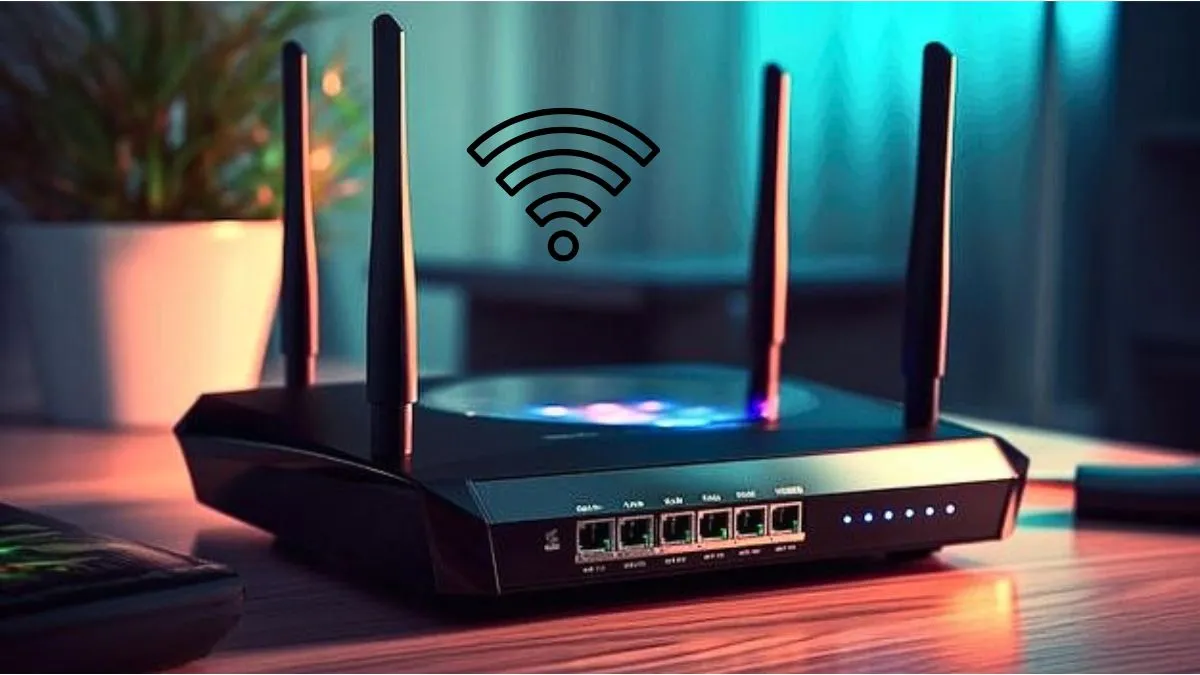
Every connected device in your house relies on your wireless network. Smart televisions, laptops, mobile phones, security cameras, and home automation systems all share the same digital doorway. If an unauthorized individual gains access to your home Wi-Fi, they can intercept sensitive personal data, monitor internet traffic, consume your bandwidth, or infect your connected devices with malicious software.
Securing your wireless network goes beyond creating a basic password. Internet service providers often ship equipment configured with generic factory settings that prioritize quick installation over long-term security. Safeguarding your digital environment requires adjusting administrative controls, implementing strong encryption protocols, and regularly monitoring connected hardware.
Fundamental Configuration Changes for Your Router
Taking control of your network starts at the physical hardware level. Every home router includes an administrative console that allows you to manage traffic, update system parameters, and control connected hardware.
Change the Default Administrative Credentials
When you unbox a new router or sign up with a new internet service provider, the router comes with factory default credentials. Manufacturers often reuse standard usernames and passwords across thousands of units. Attackers can look up these factory credentials online and access your router settings if they get near your wireless signal.
-
Log into your router administrative portal by entering its local Internet Protocol address into a standard web browser.
-
Locate the account management or administrative settings section.
-
Create a unique administrative username if the firmware permits it.
-
Set a complex password that combines uppercase letters, lowercase letters, numbers, and distinct symbols.
-
Avoid using personal information, household addresses, or common terms in the password.
Rename the Default Network Name
The Network Name, commonly called the Service Set Identifier, identifies your wireless network to nearby devices. Factory settings usually include the manufacturer name or model number in the default name. Broadcasters using default names reveal the exact hardware model to potential attackers, making it easier for them to target known software vulnerabilities.
-
Select a network name that does not expose your full name, physical address, or apartment number.
-
Omit hardware manufacturer details from the network name.
-
Keep the name distinct so you can easily identify your legitimate network from neighboring signals.
Strengthening Encryption Protocols and Passwords
Encryption scrambles the data travelling between your devices and your router, ensuring that nearby eavesdroppers cannot read your private communications.
Upgrade to Modern Encryption Standards
Older encryption formats contain architectural flaws that modern software tools can crack in minutes. You must select the highest encryption level supported by your router and connected hardware.
-
WPA3: This represents the newest and most secure wireless security standard. It offers superior protection against dictionary attacks and uses robust modern cryptographic standards.
-
WPA2 Personal: If some of your older devices do not support WPA3, select WPA2 Personal with Advanced Encryption Standard. Ensure that Temporal Key Integrity Protocol is disabled, as TKIP contains known security weaknesses.
-
Avoid Legacy Protocols: Never choose Wired Equivalent Privacy or the original Wi-Fi Protected Access protocol. These standards are obsolete and provide virtually no real security.
Create a Strong Network Passphrase
Your Wi-Fi password prevents unauthorized devices from joining your network. Short or simple passwords can be cracked using automated brute-force scripts.
-
Use a minimum length of 16 characters for optimal protection.
-
Combine unrelated words to form a long pass-phrase that is easy for you to remember but difficult for automated tools to guess.
-
Avoid common character substitutions like replacing the letter ‘o’ with a zero.
-
Store your passphrase in an encrypted password manager rather than writing it on paper near the router.
Advanced Network Security and Management
Once the fundamental settings are secure, you can apply advanced configuration layers to isolate risks and reduce attack vectors across your home environment.
                  +-------------------------------+
                  |  Home Network Architecture    |
                  +---------------+---------------+
                                  |
    +-----------------------------+-----------------------------+
    |                                                           |
+---v---------------------------+           +-------------------v-----------+
|      Main Wi-Fi Network       |           |       Guest Wi-Fi Network     |
+-------------------------------+           +-------------------------------+
| * Laptops & Computers         |           | * Smart TVs & Streaming Sticks|
| * Mobile Phones & Tablets     |           | * Smart Speakers & Sensors    |
| * Network Attached Storage    |           | * Visitor Mobile Devices      |
+-------------------------------+           +-------------------------------+
Establish an Isolated Guest Network
Smart home products like internet-connected televisions, thermostats, and smart plugs often receive fewer software security updates than computers or smartphones. If a hacker gains control of a cheap smart bulb on your main network, they can potentially reach your personal laptop or storage drives.
-
Enable the guest network feature inside your router management interface.
-
Assign a unique password and modern encryption protocol to the guest network.
-
Connect all Internet of Things products, smart appliances, and visitor devices exclusively to the guest network.
-
Ensure the guest network settings block access to your primary network devices and router administrative portal.
Disable High-Risk Features
Certain convenience features included with commercial routers sacrifice security for ease of use. Disabling these features closes common doors used by attackers.
-
Disable Wi-Fi Protected Setup: This feature allows devices to join a network using a short numerical pin or a physical button. The pin method contains a major vulnerability that allows attackers to force their way into your network within hours.
-
Disable Remote Management: Turn off the setting that permits access to the router control interface from outside your local network. Administrative changes should only happen from a device physically connected to your local setup.
-
Disable Universal Plug and Play: This protocol allows devices on your network to open ports automatically to communicate with external internet services. Malicious software can exploit this feature to bypass your firewall.
Update Router Firmware Regularly
Router manufacturers release software patches to fix system bugs, patch security vulnerabilities, and improve overall operational stability. Outdated firmware leaves your entire network exposed to known threats.
-
Log into your administrative portal monthly to check for available software updates.
-
Enable automatic firmware updates if your hardware supports that feature.
-
Visit the hardware manufacturer support page directly if your router requires manual update uploads.
Physical Security and Environmental Precautions
Digital settings represent only half of your security posture. Physical access to your hardware can undermine your software defenses.
-
Position your router near the center of your house rather than near exterior walls or windows. This maximizes internal coverage while reducing the signal strength accessible from outside your property.
-
Keep your physical router in a secure location where guests or delivery workers cannot access the reset button or read hardware labels.
-
Lower your wireless signal transmission power in the administrative settings if your router allows it and your living space is small. This prevents the signal from reaching far into public streets or neighboring apartments.
Frequently Asked Questions
How often should I change my home Wi-Fi password?
You should change your Wi-Fi password at least once or twice per year. Additionally, you should update it immediately if you suspect an unauthorized device has accessed your network, if you share your password with temporary contractors, or if a device connected to your network is lost or stolen.
Does hiding my network name make my Wi-Fi completely secure?
Hiding your network name by disabling SSID broadcasting adds a minor layer of privacy, but it does not provide real security. Free network analysis tools can easily detect hidden networks by monitoring active traffic. Relying on strong encryption and complex passwords is far more effective than hiding the network name.
What is the difference between my Wi-Fi password and my router admin password?
Your Wi-Fi password allows phones, laptops, and smart devices to connect to your wireless network and use your internet connection. Your router administrative password controls access to the internal settings panel where you change security configurations, network names, and system preferences. Both passwords should be unique and complex.
Should I turn off my Wi-Fi network when going on vacation?
Turning off your router while away on extended trips eliminates external wireless attacks entirely while saving electrical power. However, if you rely on internet-connected security cameras, smart locks, leak detectors, or automated thermostats, you must keep your Wi-Fi running so those devices remain operational.
How can I tell if someone is using my Wi-Fi without permission?
You can log into your router administrative portal and review the list of connected devices or active DHCP clients. If you see unfamiliar hostnames or device addresses, an unauthorized device may be connected. Many modern router companion apps also send push notifications whenever a new device joins your network.
Does a Virtual Private Network secure my home Wi-Fi network?
A Virtual Private Network encrypts internet traffic leaving your local device and routes it through a secure server, protecting your browsing activity from external tracking. However, a VPN does not stop an attacker from joining your local Wi-Fi network if your router settings or passwords are weak. You still need to apply proper router security measures.
Is MAC address filtering an effective way to block unauthorized devices?
Media Access Control address filtering allows you to specify exactly which physical hardware addresses can join your network. While it adds an extra step for users, experienced attackers can easily intercept permitted MAC addresses broadcasting over the air and clone them onto their own devices. Use it only as a secondary measure alongside strong WPA2 or WPA3 encryption.